This WordPress website launch checklist helps small business owners review more than whether the home page looks finished. Visitors need to understand what you offer, find the information they came for, and take the next step without running into broken links or confusing pages.
Use this WordPress website launch checklist before a new site goes live or before a major redesign replaces the current site. Some checks take only a few minutes; others may need input from the business owner, developer or marketing team. A completed checklist improves readiness, but it does not guarantee search rankings, leads or a particular performance score.
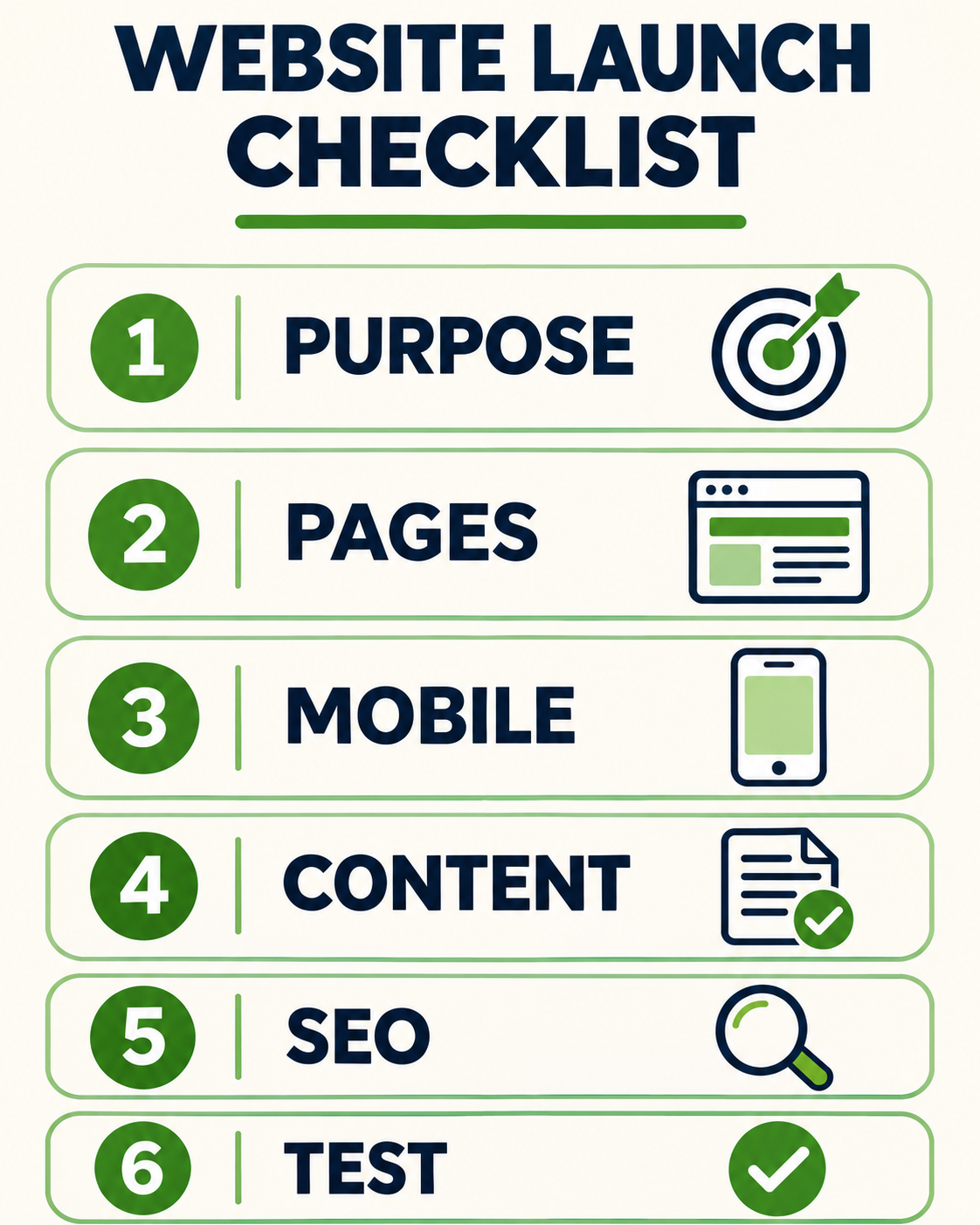
1. Start your WordPress website launch checklist with its purpose
Write down the main job the site should do. Is it meant to explain a service, help people book, encourage enquiries, sell products or share useful information? A site can support several goals, but each page should make its own priority clear.
- Can a new visitor tell what the business offers from the first screen?
- Does the home page identify the intended customer or audience?
- Is there one obvious next step, such as calling, booking or requesting information?
Remove competing calls to action when they make the choice harder. Make sure each button label describes what happens next, and check that the destination matches the promise.
2. Check the essential pages and navigation
List the pages a visitor needs before making a decision. A small business may need a home page, service or product pages, an about page and a contact page. Add a portfolio, FAQ or article section when it answers real customer questions.
Review the menu on desktop and mobile. Use concise labels, group related pages and avoid making visitors guess what a label means. Each important page should be reachable from the navigation or a relevant internal link.
- Are all required pages present and free of placeholder text?
- Do menu items, footer links and calls to action go to the right place?
- Are there duplicate pages or old links that should be redirected or removed?
3. Test the mobile experience
As part of your WordPress website launch checklist, open the website on a phone, not only in a desktop preview. Check the pages people are most likely to visit first, such as the home page, service pages and contact page. Also test on more than one screen size if possible.
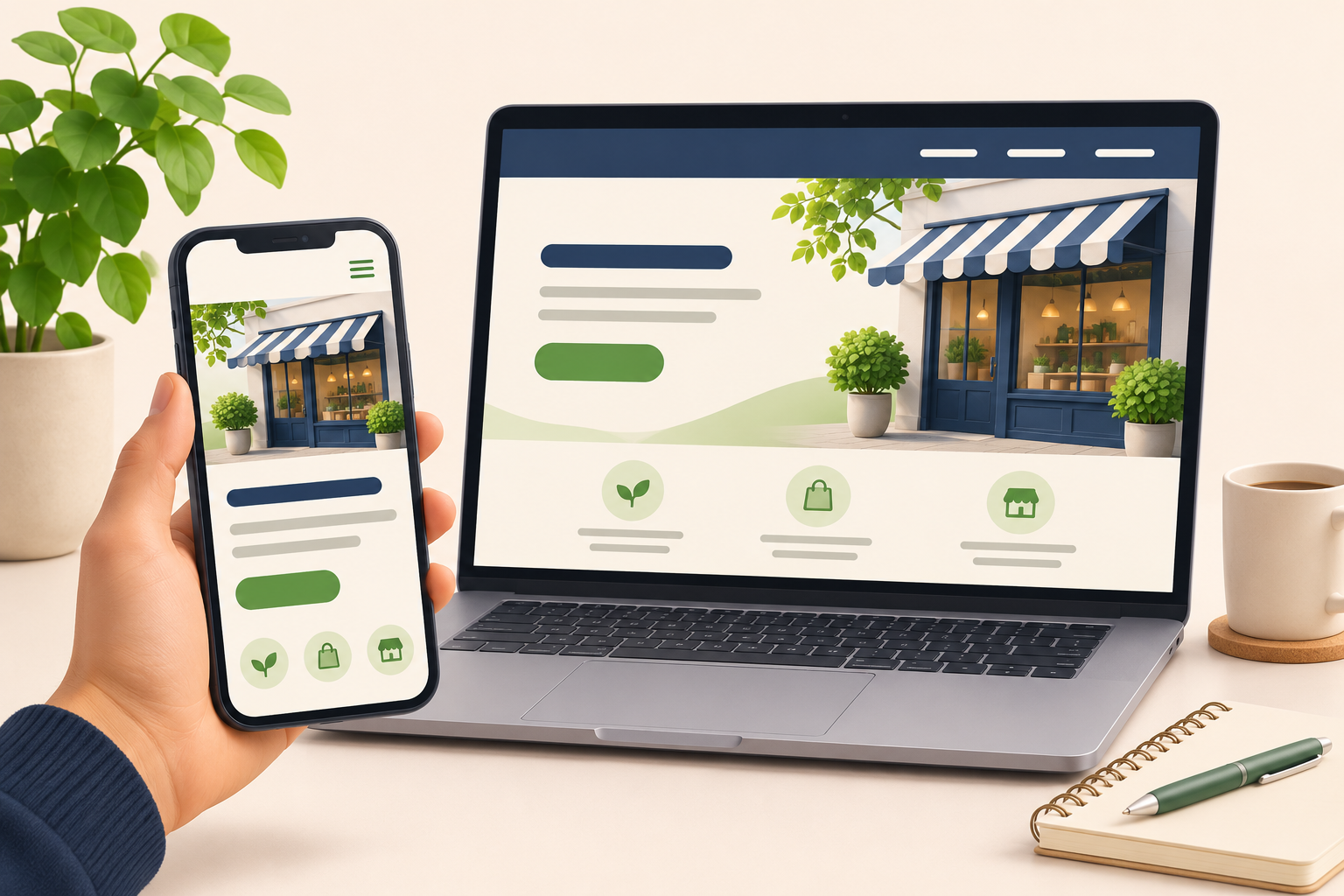
- Can you read the text without zooming or scrolling sideways?
- Are buttons and menu controls easy to tap?
- Do images keep their proportions and avoid covering text?
- Can visitors use phone, email, map or booking links directly?
- Does a form work with a mobile keyboard and show a clear confirmation?
Look for layout problems caused by long headings, large images, columns that do not stack well or pop-ups that block the page. Fix the underlying layout rather than shrinking all the text until it becomes difficult to read.
4. Review the content and business details
Read every important page as if you were a first-time visitor. Make sure the wording is clear, current and specific. Explain what a service includes, who it is for, what the process involves and how to ask a question.
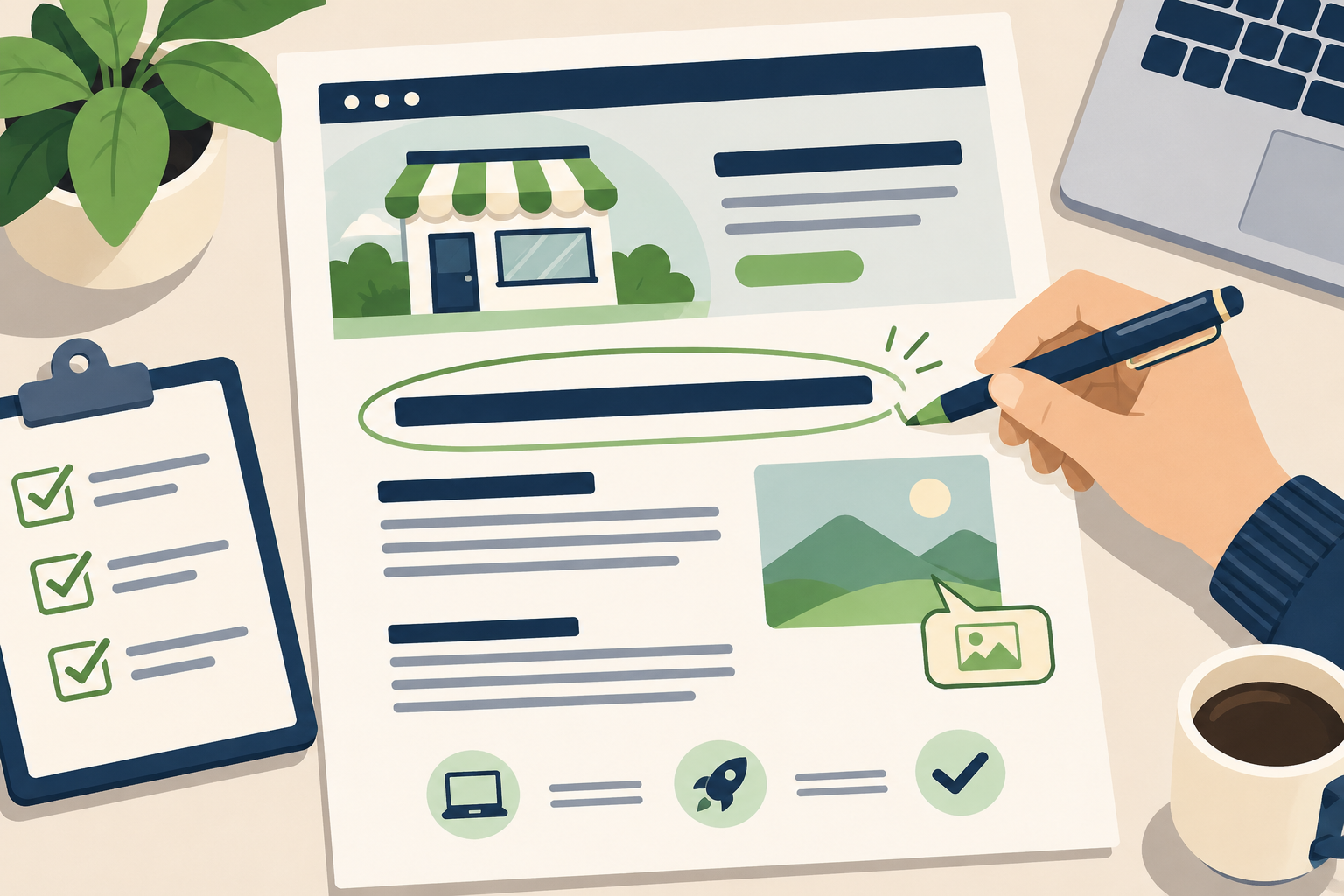
- Confirm business name, address, phone, email and opening hours.
- Check prices, service descriptions, availability and terms with the owner.
- Replace sample text, outdated announcements and unlicensed or placeholder images.
- Proofread headings, buttons, captions and form messages.
- Support claims with evidence; do not publish invented reviews or results.
Use plain language and break long sections into useful subheadings. If a project is a concept, identify it as a concept. If an outcome has not been measured, describe the work completed rather than implying a result.
5. Cover the on-page SEO essentials
A WordPress website launch checklist should cover search basics as well as design. Search engine optimization starts with useful pages that explain their subject. Choose one primary purpose for each important page, then write naturally for the person who needs that information.
- Give each page a distinct title that describes its topic or service.
- Use one clear main heading and logical subheadings.
- Write a concise meta description that accurately summarizes the page.
- Use descriptive internal link text and check that destinations load.
- Add concise alternative text to informative images; leave decorative images empty where appropriate.
- Check that pages intended for search are not accidentally set to noindex.
For Google’s overview of how to make pages easier to understand and discover, see the SEO Starter Guide from Google Search Central. Do not repeat a keyword unnaturally or expect basic metadata to guarantee a ranking. If the site has an SEO plugin, review its output, then check the live page source or a preview where practical.
6. Check images and page speed
Large image files can make pages slower, especially on mobile connections. Resize images to the dimensions they will actually display, use an appropriate modern format when available, and avoid uploading multiple full-size versions that are never needed.
After making changes, test key pages with a performance tool and keep a note of the page, device context and date. A score is a diagnostic clue, not the whole user experience. Pay attention to whether the content appears promptly and whether the page remains usable while it loads.
7. Test forms, links and important journeys
Run through the actions a customer may take. Submit a test enquiry and confirm it reaches the right inbox. Check any booking, payment, account or newsletter flow from start to finish, including the confirmation screen or email.
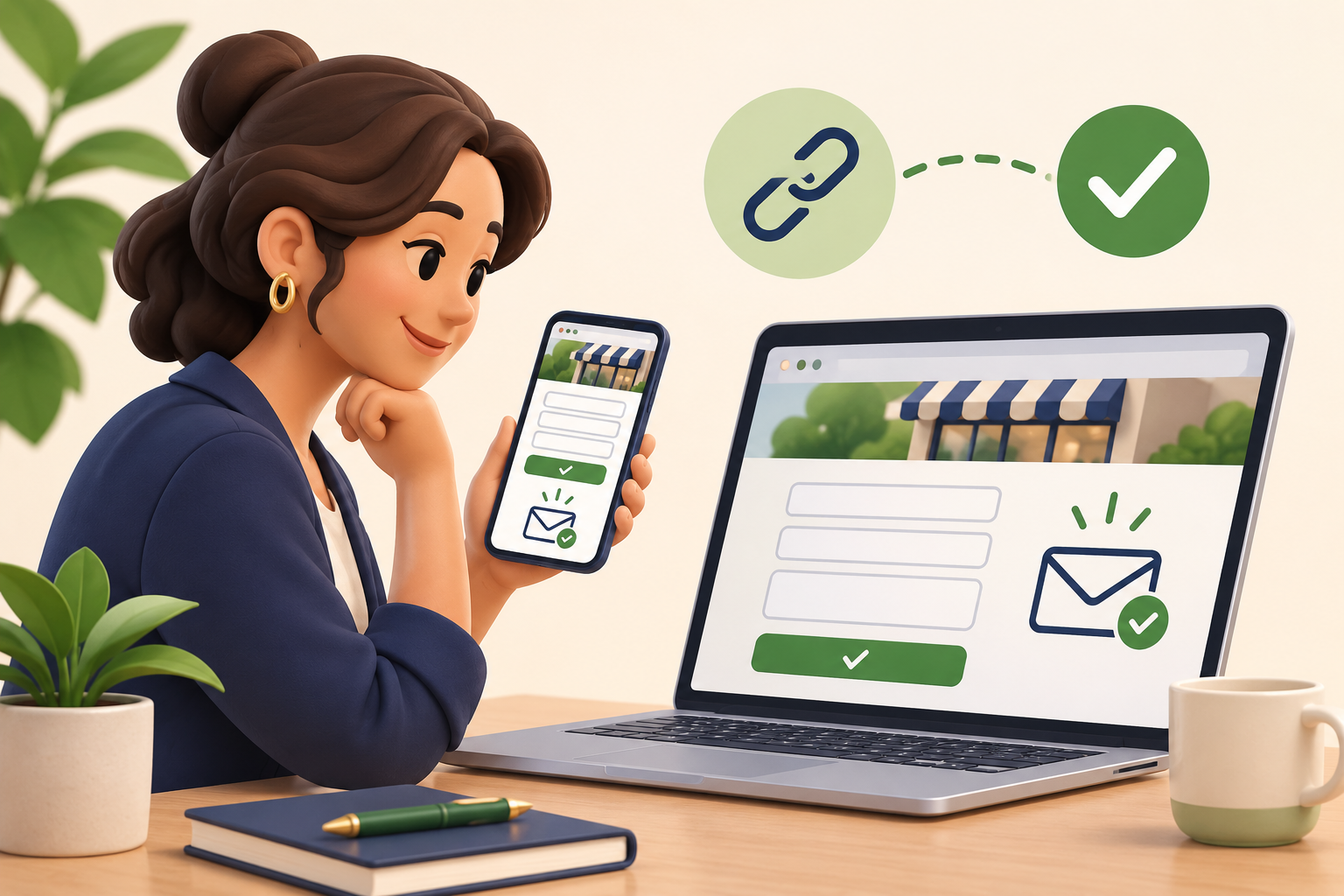
Test social links, phone links, email links, downloads and map directions. Review the site on a current browser and fix obvious broken pages. If a page has moved, set up a relevant redirect so visitors and search engines are not sent to a dead end.
8. Check launch settings and maintenance basics
Before launch, confirm the public pages are accessible to search engines and that private or staging content is not accidentally exposed. Check that the site uses a secure connection, that the sitemap is available if your SEO setup provides one, and that analytics or consent tools are configured according to the business’s needs.
Know who will handle updates, backups, form checks and content changes after launch. A website needs ongoing care: business hours change, links break and services evolve. Keep a simple record of what was reviewed, when, and who owns any remaining task.
A short final review
Before you call the site ready, ask someone unfamiliar with the build to complete the main task without guidance. Notice where they hesitate or ask questions. Their feedback can reveal unclear labels or missing information that the site team has stopped noticing.
Keep this WordPress website launch checklist and revisit it when you add a major page or change how customers contact you. If you are planning a WordPress website, explore my website and SEO services or browse the work listed in my project portfolio.